

Original

4× Upscaled
Upscale a Product Photo
Sharper detail —2× & 4×
Enlarge product photos for marketplace zoom and catalogs. AI adds resolution to packaging, shoes, and electronics — free 2×, no watermark.
or drag & drop images here (JPG, PNG, WEBP)
UploadUpscale 2× / 4×Download
🔒 Private processing: your files aren’t kept as a public gallery.
No image?
Try one of these:
By uploading an image you agree to our Terms of Service. To learn more about how we handle your personal data, check our Privacy Policy.
Stunning Quality
Drag the slider handle to see before and after upscaling
How to enlarge a product photo
Add pixels for zoom, then compress so the listing stays fast.
- 1
Choose an image
Drop a JPG, PNG, or WEBP up to 20 MB — no account needed.
- 2
Let AI upscale
Pick 2× (free) or 4× (Pro), then check the compare slider.
- 3
Save the result
Free 2× is a WebP up to 1280px with no watermark; Pro keeps full 2× / 4× / 8×.
In one sentence
Filvo Image Upscaler enlarges photos with AI. The file is sent through Filvo’s API to generate the larger image, then returned for download. There is no public gallery and no watermark.
Filvo vs typical cloud AI tools
The file is sent only to generate the result. Filvo does not keep a public gallery.
| Feature | Filvo | Typical cloud tools |
|---|---|---|
| Where the file goes | Through Filvo’s API to generate the result, then not kept in a gallery | Uploaded and often stored or used in marketing |
| Account to try | Not required for cutout and upscale. Object removal needs sign-in | Usually required |
| Watermark | Never on the download | Common on free tiers |
| Public gallery of uploads | No | Sometimes used for marketing |
| Free tier | A few lifetime tests, then a $0.99 day pass for HD | Credits or a tight daily cap |
| Pro unlock | Day, week, or month pass — HD download and batch up to 25 | Paid credit packs or a $10–$20 monthly plan |
How to upscale a product photo
Catalog zoom is the usual reason a pack shot needs more pixels — not a poster on the wall.
Product photography has a different failure mode than portraits. You care about type on a label, a stitch line, a metal edge. Stretching a 500-pixel JPEG makes all of that mush. Filvo’s upscaler is the same 2× / 4× engine; this page assumes the subject is a SKU.
One item per frame. Group shots waste the enlarge on leftover products you will crop away.
Cutout, then enlarge — or the reverse
If you need a transparent PNG, cut out first on a clean source, then upscale the PNG so you do not enlarge shelf clutter. If the photo stays on white, you can enlarge first and crop later.
After the enlarge, compress. Marketplaces cap file size even when they want zoom.
Steps for a shop-ready enlarge
Upload the catalog photo here. Preview edges and type. Download the 2× PNG or JPG. If zoom is still short, run 4× on Pro. Set the final pixels in the editor to match the channel, then compress.
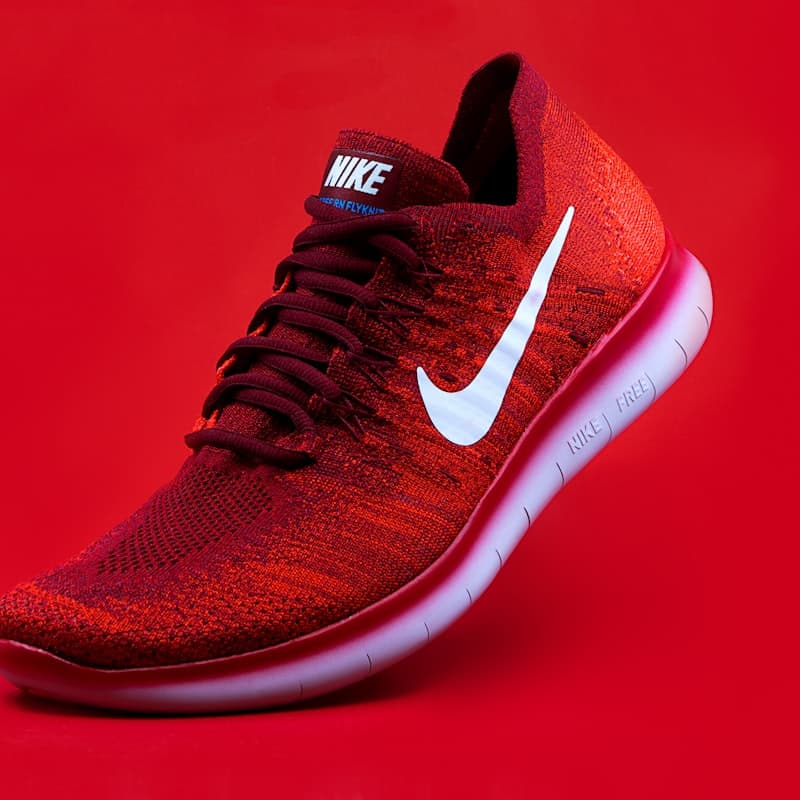




Sharper files when the photo is too small
Enlarge catalog shots, portraits, and scans with AI — 2× is free, 4× is Pro. Not a blurry stretch.
Compare before you save. No watermark. Cut out the subject or compress the result next.
Frequently asked questions
Catalog zoom is the usual reason a pack shot needs more pixels — not a poster on the wall.
More ways to upscale
Same AI — 2× or 4× already selected.

Image Upscaler
The main AI enlarge tool — 2× or 4×, any subject.

Upscale a Logo
A 200-pixel wordmark on a slide looks cheap. Upload the bitmap; download a larger PNG you can place today.
Enlarge a Photo Online
“Make it bigger” is a super-resolution job. Upload the small file; download a larger one you can actually use.
4× Image Upscaler
Need a large print or a tight crop that still looks sharp? This page opens the studio on 4× (Pro). Free accounts still get a 2× result.
Explore related tools
Cut out, compress, or crop after you enlarge.
Image Compressor
Active 🔥Shrink the upscaled file for the web without muddy artifacts.
Remove Background
Active 🔥Cut out the subject before or after you enlarge the image.
Object Removal
Active 🔥Erase a person, watermark, or stray object from the photo.
Image Editor
Active 🔥Resize, crop, or watermark after you enlarge the photo.
Color Picker
Active 🔥Need to extract colors from your image? Try our Color Picker.
Upscale your image
Free 2× preview — no account. A $0.99 day pass unlocks full 2×, 4×, and 8×.
or drag & drop images here (JPG, PNG, WEBP)
UploadUpscale 2× / 4×Download
🔒 Private processing: your files aren’t kept as a public gallery.
No image?
Try one of these:
By uploading an image you agree to our Terms of Service. To learn more about how we handle your personal data, check our Privacy Policy.